
Now Reading: Wazuh Dashboard Not Working After Upgrade
-
01
Wazuh Dashboard Not Working After Upgrade

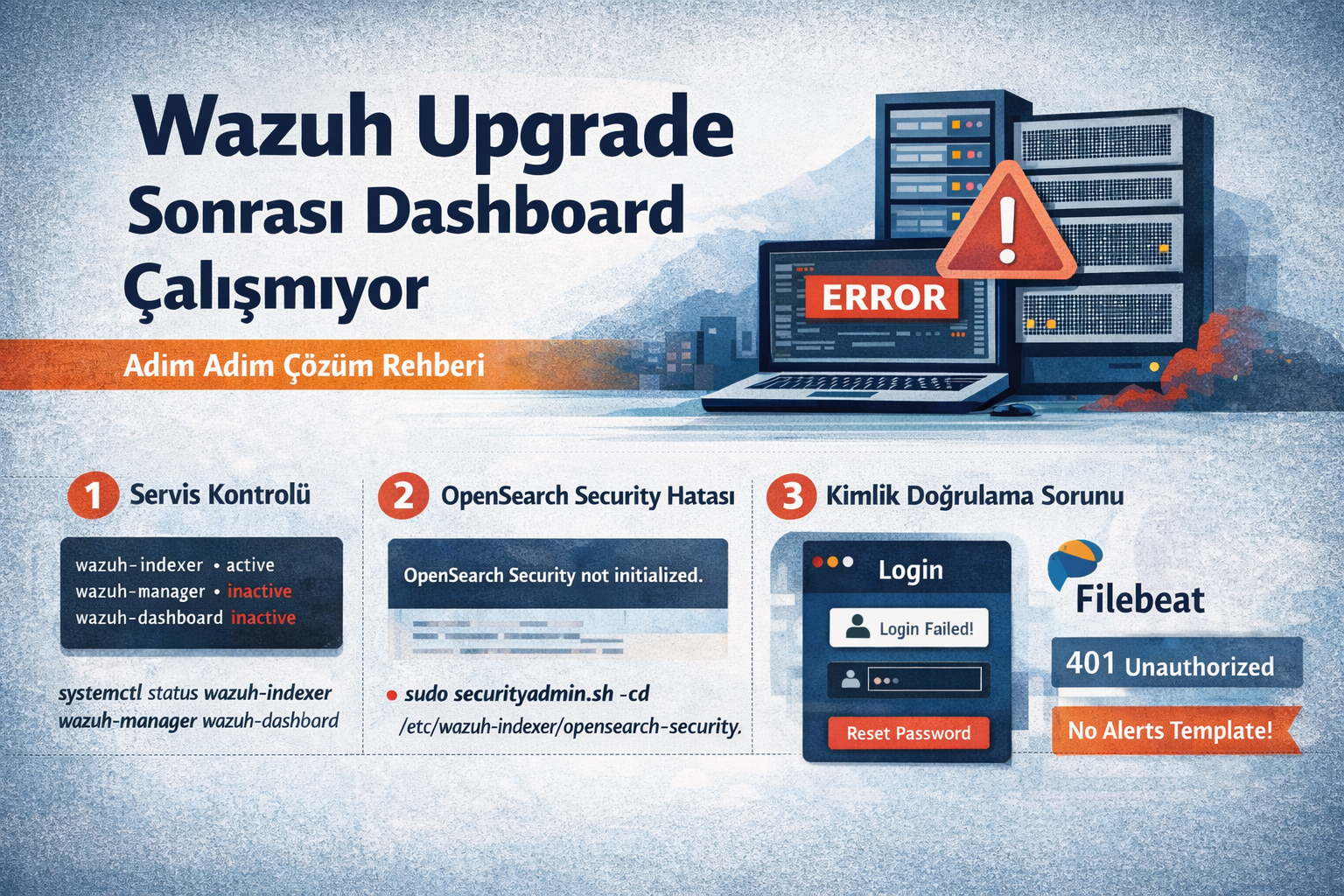
Wazuh Dashboard Not Working After Upgrade — Step-by-Step Troubleshooting Guide
Introduction
After upgrading Wazuh 4.x, it’s quite common to encounter issues where the dashboard becomes inaccessible. In this article, I walk through 5 different problems we encountered post-upgrade and their solutions, step by step.
Environment: Wazuh 4.14.x — All-in-one deployment (Manager + Indexer + Dashboard on the same server)
1. Initial Diagnosis: Checking Service Status
The first thing to do after a failed upgrade is to check the status of all Wazuh components.
systemctl status wazuh-dashboard wazuh-indexer wazuh-manager --no-pagerIn our scenario:
| Component | Status |
|---|---|
wazuh-indexer | ✅ active (running) |
wazuh-manager | ❌ inactive (dead) |
wazuh-dashboard | ❌ inactive (dead) |
Root Cause: The services were stopped during the upgrade process but never restarted.
Solution
sudo systemctl start wazuh-manager
sudo systemctl start wazuh-dashboard
2. OpenSearch Security Not Initialized
After starting the services, the dashboard logs kept showing the following error:
[ResponseError]: Response ErrorQuerying the indexer directly revealed the root cause:
curl -sk https://127.0.0.1:9200 -u admin:adminOutput:
OpenSearch Security not initialized.Root Cause
During the upgrade, the OpenSearch security plugin’s configuration directory (securityconfig) was either deleted or its path changed. The securityadmin.sh tool needs to reload this configuration.
Solution
First, locate the configuration files:
# Old path (may be deleted after upgrade):
ls /usr/share/wazuh-indexer/plugins/opensearch-security/securityconfig/

# Correct path (in Wazuh 4.x packages):
ls /etc/wazuh-indexer/opensearch-security/
If the files exist under /etc/wazuh-indexer/opensearch-security/, run securityadmin.sh with this directory:
export JAVA_HOME=/usr/share/wazuh-indexer/jdk

sudo /usr/share/wazuh-indexer/plugins/opensearch-security/tools/securityadmin.sh \
  -cd /etc/wazuh-indexer/opensearch-security/ \
  -nhnv \
  -cacert /etc/wazuh-indexer/certs/root-ca.pem \
  -cert /etc/wazuh-indexer/certs/admin.pem \
  -key /etc/wazuh-indexer/certs/admin-key.pem \
  -icl \
  -h 127.0.0.1
Missing File: internal_users.yml
In some cases, the internal_users.yml file may also be missing. To restore it:
# Download the wazuh-indexer package and extract the file
wget https://packages.wazuh.com/4.x/apt/pool/main/w/wazuh-indexer/wazuh-indexer_<VERSION>_amd64.deb \
  -O /tmp/wazuh-indexer.deb

mkdir -p /tmp/wazuh-indexer-extract
dpkg-deb -x /tmp/wazuh-indexer.deb /tmp/wazuh-indexer-extract

# Restore the missing file
sudo cp /tmp/wazuh-indexer-extract/etc/wazuh-indexer/opensearch-security/internal_users.yml \
  /etc/wazuh-indexer/opensearch-security/internal_users.yml

sudo chown wazuh-indexer:wazuh-indexer /etc/wazuh-indexer/opensearch-security/internal_users.yml
sudo chmod 640 /etc/wazuh-indexer/opensearch-security/internal_users.yml
Then re-run securityadmin.sh.
Expected output:
Done with success3. Dashboard Cannot Authenticate to Indexer
After initializing security, if the dashboard still shows [ResponseError]: Response Error, check the dashboard configuration:
sudo cat /etc/wazuh-dashboard/opensearch_dashboards.ymlIf the following lines are commented out:
# opensearch.username: kibanaserver
# opensearch.password: kibanaserver
Solution
Remove the comment markers:
sudo sed -i 's/^# opensearch.username: kibanaserver/opensearch.username: kibanaserver/' \
  /etc/wazuh-dashboard/opensearch_dashboards.yml

sudo sed -i 's/^# opensearch.password: kibanaserver/opensearch.password: kibanaserver/' \
  /etc/wazuh-dashboard/opensearch_dashboards.yml
Restart the dashboard:
sudo systemctl restart wazuh-dashboardNote: The
kibanaserveruser is an internal service account used by the dashboard to communicate with the indexer. Do not confuse it with the admin login account.
4. Invalid Username or Password on Login
If the dashboard login page loads but you get “Invalid username or password”, it’s because the internal_users.yml file was restored with default (demo) password hashes. Your original password no longer matches.
Solution: Password Reset
Step 1: Generate a new bcrypt hash:
export JAVA_HOME=/usr/share/wazuh-indexer/jdk

sudo /usr/share/wazuh-indexer/plugins/opensearch-security/tools/hash.sh \
  -p 'YourNewSecurePassword123!'
Example output:
$2y$12$AbCdEfGhIjKlMnOpQrStUvWxYz1234567890abcdefghijklmnStep 2: Update the admin hash in internal_users.yml:
sudo vi /etc/wazuh-indexer/opensearch-security/internal_users.ymlReplace the hash: value in the admin: block with the new hash:
admin:
  hash: "$2y$12$AbCdEfGhIjKlMnOpQrStUvWxYz1234567890abcdefghijklmn"
  reserved: true
  backend_roles:
  - "admin"
  description: "Demo admin user"
Step 3: Push the changes to the indexer:
sudo JAVA_HOME=/usr/share/wazuh-indexer/jdk \
  /usr/share/wazuh-indexer/plugins/opensearch-security/tools/securityadmin.sh \
  -cd /etc/wazuh-indexer/opensearch-security/ \
  -nhnv \
  -cacert /etc/wazuh-indexer/certs/root-ca.pem \
  -cert /etc/wazuh-indexer/certs/admin.pem \
  -key /etc/wazuh-indexer/certs/admin-key.pem \
  -icl \
  -h 127.0.0.1
Step 4: Verify:
curl -sk https://127.0.0.1:9200 -u 'admin:YourNewSecurePassword123!'If the cluster info is returned, the password has been successfully updated.
5. Missing Alerts Index Template
After logging into the dashboard, the health check screen may display:
[Alerts index pattern] No template found for the selected index-pattern title [wazuh-alerts-*]Root Cause
The wazuh-alerts index template is loaded by Filebeat. After the upgrade, Filebeat’s connection to the indexer may have broken due to the password change.
Solution
Step 1: Test the Filebeat connection:
sudo filebeat test outputIf it returns 401 Unauthorized:
Step 2: Update the password in Filebeat’s keystore:
echo 'YourNewSecurePassword123!' | sudo filebeat keystore add password --stdin --forceStep 3: Restart Filebeat:
sudo systemctl restart filebeatStep 4: Verify the connection:
sudo filebeat test outputExpected output:
elasticsearch: https://127.0.0.1:9200...
  ...
  talk to server... OK
  version: 7.10.2
Step 5: Confirm the template was loaded:
curl -sk https://127.0.0.1:9200/_cat/templates?v \
  -u 'admin:YourNewSecurePassword123!' | grep wazuh
Expected output:
wazuh            [wazuh-alerts-4.x-*, wazuh-archives-4.x-*] 0     1
wazuh-agent      [wazuh-monitoring-*]                        0
wazuh-statistics [wazuh-statistics-*]                        0
Summary: Troubleshooting Checklist
If you’re experiencing issues after a Wazuh upgrade, follow this checklist in order:
| # | Check | Command |
|---|---|---|
| 1 | All service statuses | systemctl status wazuh-indexer wazuh-manager wazuh-dashboard |
| 2 | Is OpenSearch Security initialized? | curl -sk https://127.0.0.1:9200 -u admin:PASSWORD |
| 3 | Are securityconfig files in place? | ls /etc/wazuh-indexer/opensearch-security/ |
| 4 | Is dashboard config username/password uncommented? | cat /etc/wazuh-dashboard/opensearch_dashboards.yml |
| 5 | Is the admin hash up to date? | Test dashboard login |
| 6 | Can Filebeat connect to the indexer? | filebeat test output |
| 7 | Is the alerts template loaded? | curl ... /_cat/templates?v | grep wazuh |
Security Reminders
- Always change default demo passwords (
admin/admin,kibanaserver/kibanaserver) - Update hashes for all users in
internal_users.yml - Keep the Filebeat keystore password in sync with the admin password
- Back up the
/etc/wazuh-indexer/opensearch-security/directory before any upgrade
References
This article was compiled from a real-world upgrade troubleshooting session.