Exchange Server 2019 Mailbox Migration Error and Disk Full Problem
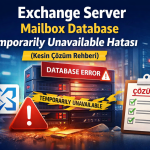
During mailbox migration in Exchange Server 2019 environments, disk full errors, move request failures, and database mount problems are among the most critical issues system administrators face. In this comprehensive guide, we explain the root cause and permanent solution step by step through a real-world scenario.
Problem Scenario
When migrating user mailboxes to a new database in Exchange Server 2019 environment, the following issues occur:
Disk space fills up rapidly
Move request operations failDatabase cannot be mounted
Database enters “Dirty Shutdown” state
Transaction log files grow uncontrollably
Example Error Message:
MapiExceptionNoSupport: Unable to write mailbox info
MapiExceptionDatabaseError (ec=1108)
Move Request Status: Failed
Root Cause of the Problem
During mailbox migration, Exchange Server performs the following operations:
Reads data from source database
Writes data to target database
Generates intensive transaction logs
If the system has:
Insufficient disk space
No Exchange-aware backups
Circular logging disabled
Transaction log files (.log) grow rapidly and completely fill the disk.
What Happens When Disk Fills Up?
When Exchange Server disk fills up, it creates a domino effect:
New transaction logs cannot be written
Database operations cannot complete
Database enters Dirty Shutdown state
Mailbox migration operations stop
Mail flow is interrupted
Important: This is not just a disk problem, but a critical error affecting all Exchange services.
Critical Mistake: Bulk Mailbox Migration
The biggest mistake system administrators make:
Migrating too many mailboxes simultaneouslyReasons why this is problematic:
Each mailbox migration generates logs
Large mailboxes (5GB+) generate more logs
Disk fills up very quickly
System crashes
Step-by-Step Solution
Step 1: Clean Move Requests
First, clean all failed move requests:
Get-MoveRequest | Remove-MoveRequest -Confirm:$falseTo clean only failed ones:
Get-MoveRequest -MoveStatus Failed | Remove-MoveRequest -Confirm:$falseStep 2: Free Up Disk Space
Safest method:
Take Exchange-aware backup (Windows Server Backup or 3rd party solution)
Transaction logs will automatically truncate after backup
Alternative (temporary):
Manually delete old log files (risky)
Move to another disk
Step 3: Temporary Solution – Circular Logging
Warning: This method should only be used in emergency situations. Point-in-time recovery is not possible while circular logging is active.
Set-MailboxDatabase "Mailbox Database Unlimited" -CircularLoggingEnabled $true
Restart-Service MSExchangeIS
After completion, make sure to disable it:
Set-MailboxDatabase "Mailbox Database Unlimited" -CircularLoggingEnabled $false
Restart-Service MSExchangeIS
Step 4: Mount Database
After freeing disk space, mount the database:
Mount-Database "Mailbox Database Archive"If it doesn’t mount, check the status:
Get-MailboxDatabase -Status | Select Name, Mounted, DatabaseSizeStep 5: Mailbox Migration (Correct Method)
First test with a single user:
New-MoveRequest -Identity "user@domain.com" -TargetDatabase "Mailbox Database Management"Check the status:
Get-MoveRequest -Identity "user@domain.com" | Get-MoveRequestStatisticsStep 6: Large Mailbox Migration
For mailboxes over 5GB:
New-MoveRequest -Identity "user@domain.com" `
  -TargetDatabase "Mailbox Database Management" `
  -BadItemLimit 50 `
  -AcceptLargeDataLoss `
  -Priority High
Step 7: Batch Migration (For Small Mailboxes)
Create batch with maximum 5 users:
$users = @("user1@domain.com", "user2@domain.com", "user3@domain.com")

foreach ($user in $users) {
    New-MoveRequest -Identity $user -TargetDatabase "Mailbox Database Management"
}
Proper Migration Strategy
Situation
Recommendation
Description
Small mailbox (<2GB)
Batch (5 users)
Can migrate 5 users simultaneously
Medium mailbox (2-5GB)
Batch (2-3 users)
More careful progression
Large mailbox (>5GB)
One by one
Each user separately
Disk space
Min. 100-200 GB free
Reserve for log growth
Log management
Daily backup
Automatic log truncation
Professional Best Practices
Best Practices
Keep database and log files on separate disks (performance and security)Must use Exchange backup solution (Veeam, Acronis, Windows Server Backup)Set mailbox size limits (ProhibitSendReceiveQuota)Configure archive database separately (move old emails to archive)Set up disk monitoring system (PRTG, Zabbix, Nagios)Calculate disk space before migration (total mailbox size x 1.5)
Disk Monitoring PowerShell Script
# Disk space check
$disk = Get-WmiObject Win32_LogicalDisk -Filter "DeviceID='E:'" |
    Select-Object @{Name="FreeGB";Expression={[math]::Round($_.FreeSpace/1GB,2)}}

if ($disk.FreeGB -lt 50) {
    Send-MailMessage -To "admin@domain.com" `
        -Subject "WARNING: Exchange Disk Almost Full" `
        -Body "Remaining space: $($disk.FreeGB) GB" `
        -SmtpServer "mail.domain.com"
}
Transaction Log Size Check
Get-MailboxDatabase | ForEach-Object {
    $logPath = (Get-MailboxDatabase $_.Name).LogFolderPath
    $logSize = (Get-ChildItem $logPath -Filter "*.log" | Measure-Object -Property Length -Sum).Sum / 1GB

    [PSCustomObject]@{
        Database = $_.Name
        LogSizeGB = [math]::Round($logSize, 2)
    }
} | Format-Table -AutoSize
Conclusion
Most Exchange Server 2019 mailbox migration problems stem from:
Lack of disk management
No transaction log control
Wrong migration plan
Absence of backup system
With proper planning:
Data loss is prevented
System performance is maintained
Migration completes smoothly
Downtime is minimized
Quick Summary
If disk fills up, Exchange stops
Mailbox migration generates intensive transaction logs
Bulk migration is risky
Safest method: small batches + continuous monitoring
Backup system is mandatory
More Exchange Guides
Follow our site for more articles on Exchange Server management, security, and performance optimization.
Feel free to share your questions in the comments!